
Subway Surfers: How to Turn Off the Radar (Geolocation) and Mute Notifications for Good

Table of Contents
You're dodging trains, collecting coins, and suddenly—ping! Another notification: "Come back, the trains miss you!" And somewhere in the background, Subway Surfers is quietly checking your exact location. Creepy? A bit. Annoying? Definitely. Let's fix that.
Why Does Subway Surfers Want My Exact Location?
Subway Surfers uses geolocation for features like leaderboards, friend challenges, and targeted ads. But do you really need your phone's GPS to run from a virtual cop? Probably not. Keeping location on drains battery and shares data you might not want to share. The tracking is stickier than duct tape on arm hair.
How to Revoke Geolocation Permissions on Subway Surfers
On iOS (iPhone/iPad)
- Open Settings → Privacy & Security → Location Services.
- Find Subway Surfers in the list.
- Tap it and select Never (or While Using the App if you want it only when playing).
- Bonus: Toggle off Precise Location to share only your approximate area.
On Android
- Go to Settings → Apps → Subway Surfers.
- Tap Permissions → Location.
- Select Deny (or Allow only while using the app).
How to Disable Notifications on Subway Surfers
On iOS
- Settings → Notifications → Subway Surfers.
- Toggle off Allow Notifications. Or customize: disable sounds, badges, banners.
On Android
- Settings → Apps → Subway Surfers → Notifications.
- Toggle off All notifications or manage categories individually (e.g., turn off "Promotional" but keep "Game invites").
That's it. No more pings, no more location tracking. Your battery will thank you.
Now, a quick reality check: compared to the American model under the California CCPA or CPRA, where you have the right to opt out of data sales and request deletion, many gaming apps (including Subway Surfers) still default to aggressive tracking. The CCPA gives you more control—but only if you exercise it. So go ahead, revoke those permissions. It's your data, your phone, your privacy.

NakedPact Editorial Committee
Article created by the NakedPact editorial team. Our mission is to analyze, simplify, and expose unfair terms and hidden risks in everyday contracts to protect citizens and consumers.
Sources and Legal References
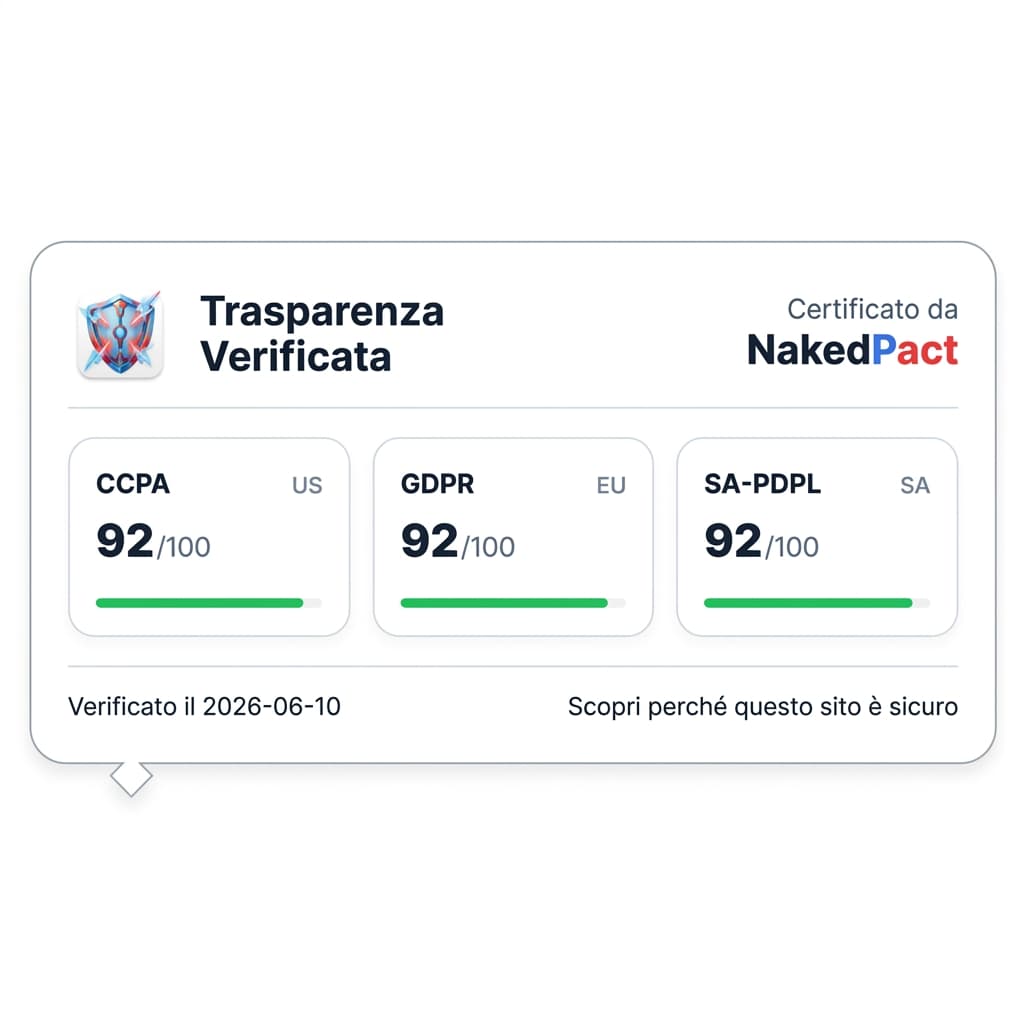
Do you own a website?
Want to communicate your data processing transparency to your users? Dynamically use our badge and showcase your platform's compliance.
Recommended Readings
Block Blast!: come spegnere il radar (geolocalizzazione) e zittire le notifiche per sempre
Tubi: come spegnere il radar (geolocalizzazione) e zittire le notifiche per sempre
Fruit Ninja: come spegnere il radar (geolocalizzazione) e zittire le notifiche per sempre
🛡️ Protect your rights with one click
Don't risk signing abusive clauses. Install the free NakedPact extension for Chrome or Firefox and instantly analyze any contract on the web.
Don't trust, verify.
Now that you know the risks, don't sign blindly. Upload your contract to NakedPact and let AI find the hidden clauses for you. It's 100% free.
Analyze Your Contract Now