
Coursera: How to Turn Off the Radar (Geolocation) and Silence Notifications Forever

Table of Contents
Your phone buzzes. It's Coursera reminding you to finish that Python lecture. Then it buzzes again: a new course recommendation based on your location. Wait—why does a learning app need to know where you are? It's like a librarian following you around the stacks. Not cool.
Constant notifications and geolocation tracking aren't just annoying; they drain your battery and feed your data to ad networks. Let's shut it down.
Why Does Coursera Want My Exact Location?
Coursera uses location to suggest local universities, events, and courses relevant to your region. But do you really need that? Probably not. And the trade-off is your privacy. Under the California CCPA, you have the right to opt out of data sharing for targeted ads. But Coursera's default settings are sticky—like duct tape on arm hair.
How to Disable Geolocation on Coursera (iOS)
Step 1: Open iPhone Settings
Go to Settings > Privacy & Security > Location Services.
Step 2: Find Coursera
Scroll down to Coursera in the app list. Tap it.
Step 3: Set to 'Never'
Select Never. If you want to be less drastic, choose While Using the App—but honestly, 'Never' is the privacy win.
How to Disable Geolocation on Coursera (Android)
Step 1: Open App Info
Long-press the Coursera app icon, then tap App info (or go to Settings > Apps > Coursera).
Step 2: Permissions
Tap Permissions > Location.
Step 3: Deny
Select Deny. Done. No more radar.
How to Turn Off Notifications on Coursera (iOS)
Step 1: Settings
Go to Settings > Notifications.
Step 2: Find Coursera
Tap Coursera in the list.
Step 3: Toggle Off
Switch Allow Notifications to off. You can also customize which alerts you want (e.g., keep course reminders but kill marketing).
How to Turn Off Notifications on Coursera (Android)
Step 1: App Info
Long-press Coursera icon > App info.
Step 2: Notifications
Tap Notifications.
Step 3: Block All
Toggle off Show notifications. Or tap each category (e.g., 'Promotional') and block individually.
Privacy Beyond the Settings
You've silenced the beast. But remember: even after you disable location, Coursera may still collect other data (like your IP address) for analytics. Compared to the American model under the California CCPA or CPRA, European apps often have stricter consent requirements. Coursera, being US-based, follows a more permissive approach—you have to opt out manually. So take control. Your battery and your privacy will thank you.
And hey, if you ever miss the buzz, you can always turn it back on. But why would you? Learning should be quiet, focused, and location-free.

NakedPact Editorial Committee
Article created by the NakedPact editorial team. Our mission is to analyze, simplify, and expose unfair terms and hidden risks in everyday contracts to protect citizens and consumers.
Sources and Legal References
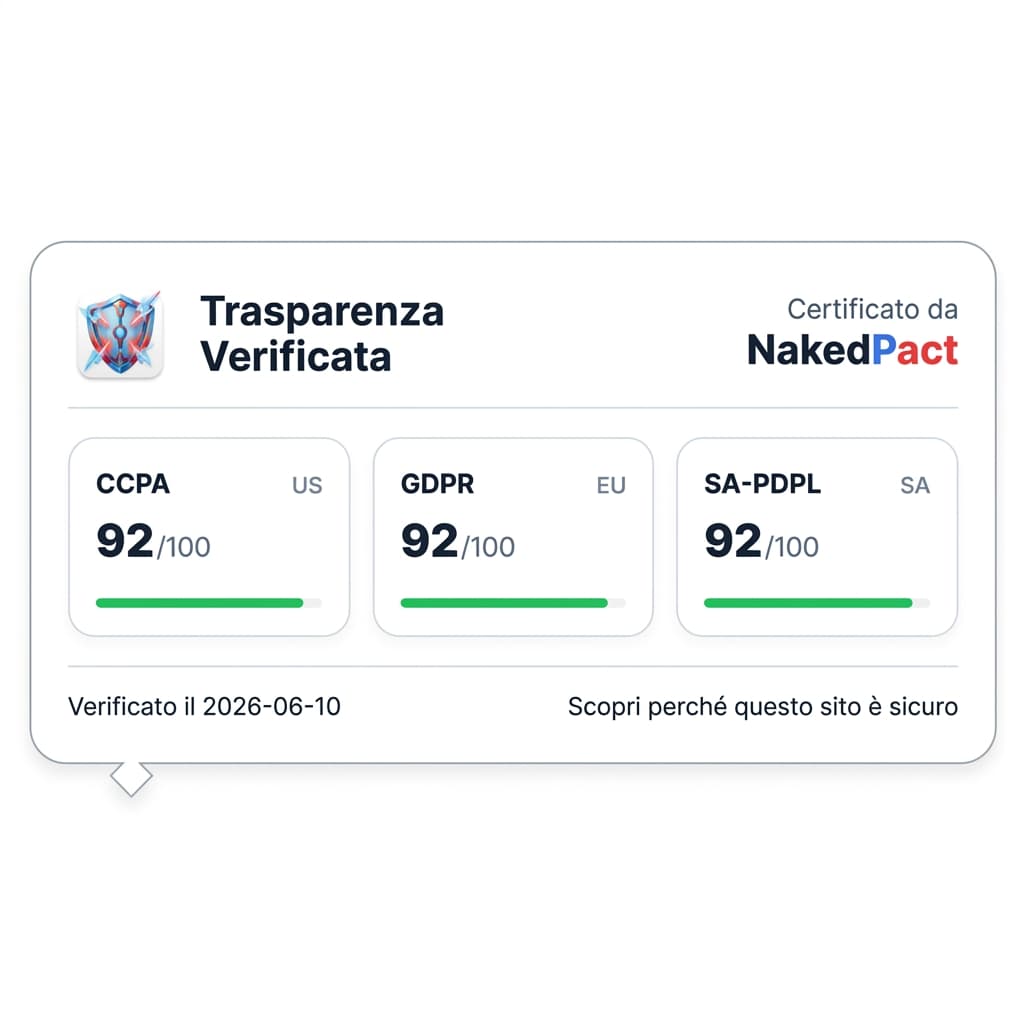
Do you own a website?
Want to communicate your data processing transparency to your users? Dynamically use our badge and showcase your platform's compliance.
Recommended Readings
Google Classroom: How to Turn Off the Radar (Geolocation) and Silence Notifications Forever
KineMaster: come spegnere il radar (geolocalizzazione) e zittire le notifiche per sempre
Clue Period Tracker: come spegnere il radar (geolocalizzazione) e zittire le notifiche per sempre
🛡️ Protect your rights with one click
Don't risk signing abusive clauses. Install the free NakedPact extension for Chrome or Firefox and instantly analyze any contract on the web.
Don't trust, verify.
Now that you know the risks, don't sign blindly. Upload your contract to NakedPact and let AI find the hidden clauses for you. It's 100% free.
Analyze Your Contract Now